

Undergraduate Fall/Spring Registration Information
Summer/Winter Scheduling Information
Registration for ALL classes will take place through the myShip Experience portal.
IMPORTANT NOTE ABOUT SUBJECT CODES: With the transition to OneSIS our subject codes have changed. Refer to Subject Code Crosswalk for the new codes.
Prepare for Registration
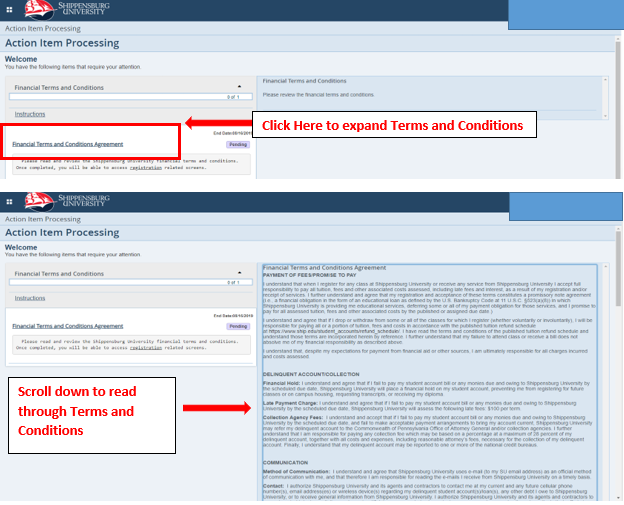
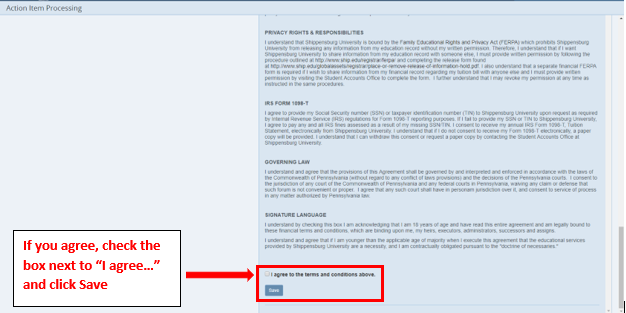
- Prior to accessing Prepare for Registration, Registration (Add/Drop or Withdraw from Classes), or View Registration Information, students will be prompted to agree to the Financial Terms and Conditions Agreement.
- To expand and review the terms and conditions, click the underlined text "Financial Terms and Conditions Agreement".
- Review the information and scroll to the end of the financial terms and conditions.
- Check the box next to "I agree to the terms and conditions above."
- Click Save to proceed to destination page.
All registration for classes must be completed during the assigned registration time ticket windows. To view assigned registration time ticket.
- Log in to the myShip Experience portal.
- on the Registration Card, click on Registration Self- Service.
- Click on Prepare for Registration.
- Select the appropriate term.
- Look for registration window information.
- Repeat the process to access information for any additional terms.
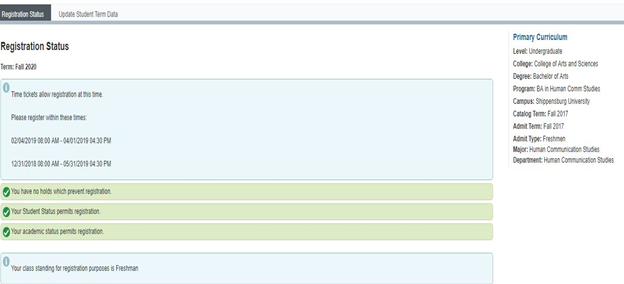
Appointment times have a staggered start date and time. Once the appointment begins, it will run through the end of the initial registration window. Students should be sure to note the start and end date and time of their registration windows.
Students should not rely on general registration dates that may be posted by offices. There are many factors that impact a student’s registration time, so students must be sure to look for their registration windows for all terms through the myShip Experience portal to determine when they may register for classes. Winter registration windows begin at the same time the spring registration window begins, but winter registration windows end at the end of the schedule adjustment period for the course(s) scheduled. Similarly, summer registration windows begin at the same time fall registration window begins, but summer registration windows end at the end of the schedule adjustment period for the course(s) scheduled.
Matriculated undergraduates and Counseling students will need to meet with their advisor to obtain their Alternate PIN for registration. Undergraduate non-degree students and graduate students not in the Counseling program do not need a pin for registration. Students who need a pin should contact their advisor a few weeks before their registration time ticket windows.
The Alternate PIN for registration is not needed for undergraduate summer or winter registration. Counseling students will need a pin to register for all semesters including winter and summer. Matriculated undergraduates and Counseling students will be unable to register for fall or spring classes without their Alternate PIN. If a student loses their Alternate PIN, they will have to contact their advisor or department office to obtain this PIN.
Matriculated undergraduate and Counseling students will need to enter their Alternate PIN until they register for at least one class through the web in a given semester. Students will not need to enter this PIN on subsequent registration days in their time ticket windows.
To access current advisor information:
- Log in to the myShip Experience portal.
- on the Academic Advising Card, click on Find Advisor
Advisors are displayed at the bottom of the profile screen under your Biographical, General, and Graduation information. You can click on the primary advisor to display their contact information.
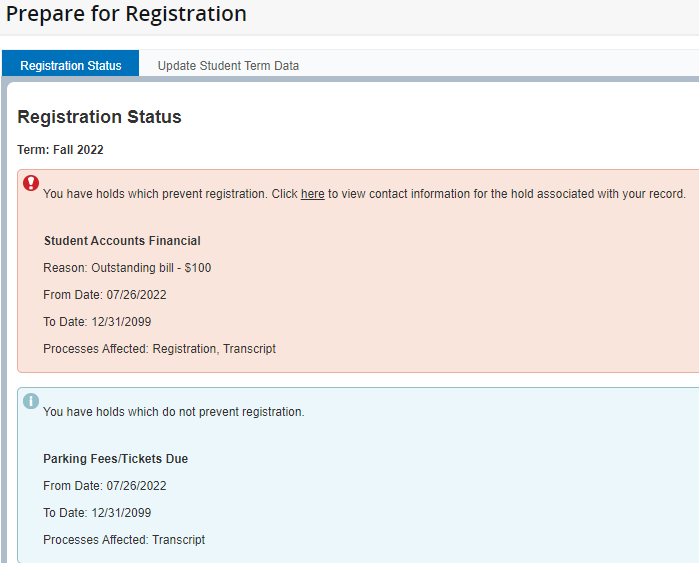
Students should check for holds before registration opens. If a hold that prevents registration has been placed on a student's record, the appropriate office must clear the hold from their record before the student will be permitted to register.
- Log in to the myShip Experience portal.
- On Registration card click Registration Self-Service
- Click on Prepare for Registration.
- Select the appropriate term
- If students have a hold, they should contact the office listed on the Types of Holds page to clear the hold from their record.
- The screen will indicate if the hold does or does not prevent registration.
Matriculated students should review the undergraduate catalog, including general education requirements, any program planning sheets from their department, and their degree audit available through the myShip Experience portal.
Restrictions exist for registration in online classes. Effective Fall 2021, students are required to complete a Distance Education orientation training before registering for a Distance Education course under any of the following conditions:
- Student has not passed a college course online in the past two years.
- Student’s cumulative GPA is below 2.0 and they have not completed the training in the past two years.
- Student’s remediation plan requires re-taking the orientation training for Distance Education.
Also effective Fall 2021, students ARE permitted to retake previously failed courses online. This includes any previously failed course of any modality.
Students should review the semester schedule, and keep in mind that the schedule is subject to change. If a course is restricted or requires permission, students should contact the department under which the course is located during their registration time ticket for assistance.
Students should not place courses on their schedule as place holders. By the end of schedule clean-up, students should have a schedule that will meet the requirements of their program of study, even though it may not contain their ideal general education courses, preferred times, or a certain faculty member.
Undergraduate students who wish to register for more than 17 credits in the fall or spring semester, more than 11 credits in the summer term, or more than 8 credits in the winter term, must get permission from their academic dean’s office prior to the end of their time ticket window for the semester or term in question. Students must complete and submit the Request to Exceed Maximum Registration Credits form to obtain permission.
Graduate students who wish to register for more than 12 credits in the fall or spring semester, more than 11 in the summer term, or more than 8 credits in the winter term, must contact the department office under which your program is located to obtain authorization. The department will notify the Registrar’s Office of approval.
To View Courses:
From the myShip Experince portal, navigate to the Registration Card and click on Registration Self-Service.
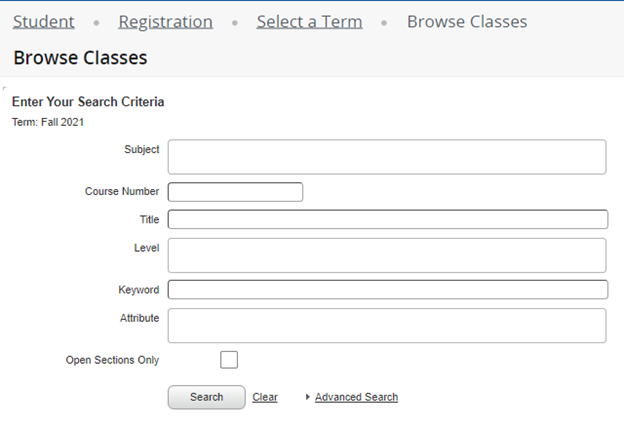
Click on Browse Classes

Select the Term
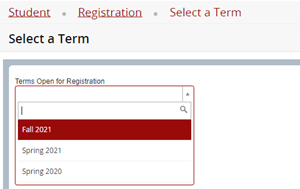
Courses can be searched using a few different methods:
- By Subject: Use the Subject dropdown and search bar to narrow results down by subject area (see example below). Click Search.
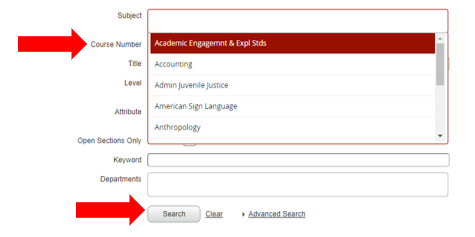
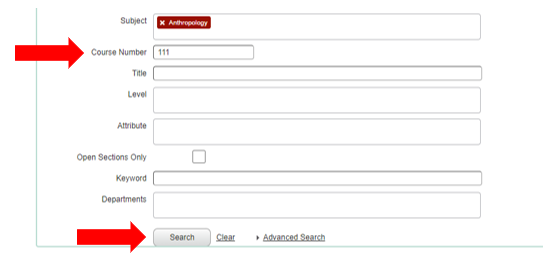
- By Subject and Course: If specific course is needed, input the appropriate subject area in the Subject search bar, then input the Course Number below. Click Search.
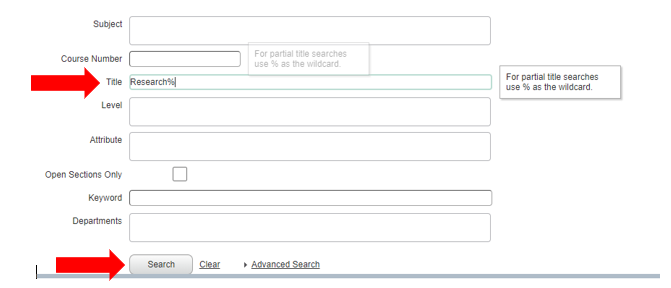
- By Course Title: Courses can also be searched by Course Title. If the full title of the course is unknown, use the wildcard “%” (ex: “Research Methods would be “Research%”). Click Search.
- By Attribute: To view all courses that meet a certain general education requirement or have a certain attribute, courses can searched for by Attribute.
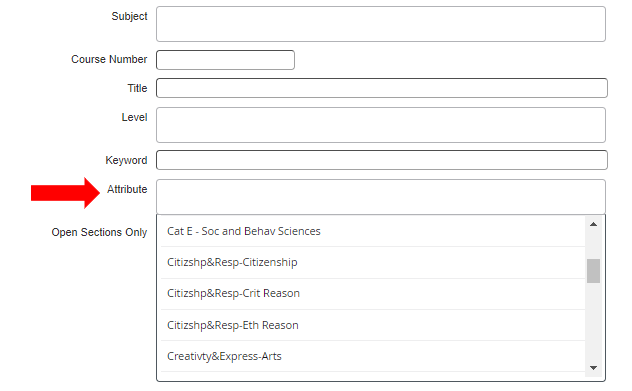
- To search by additional criteria, click Advanced Search to select additional criteria. To view only sections that have seats available, check the Open Sections Only box.
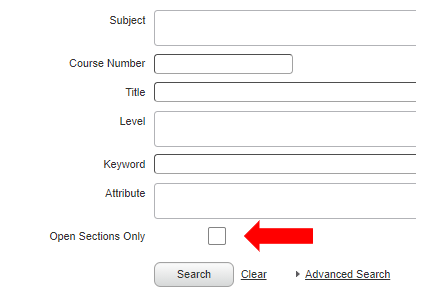
In the Search Results, are details about the sections offered.
**Remember to clear out any unneeded search criteria for each new search – it does not automatically clear out when returning to the search page**
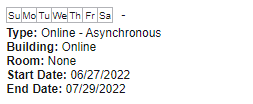
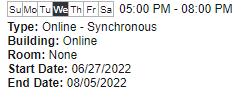
Be sure to note the course Meeting Type as you browse and register for courses. The Meeting Type indicates how the course will be delivered.
- Online-Asynchronous (does not regularly meet at a designated meeting time)
- Online-Synchronous (regularly meets online at the designated meeting time)
- Class (meets face-to-face at designated meeting time in designated meeting space)
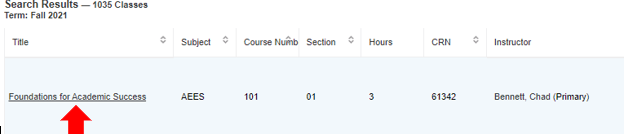
Click the Title of the course to get more details. Each detail should be reviewed carefully. Below are explanations about common details.
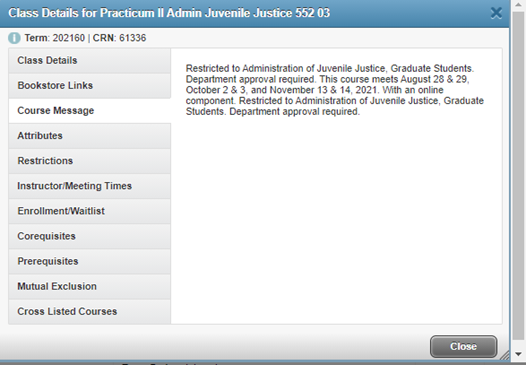
The Course Message will either show the Course Description or give information about where and how the class will meet.
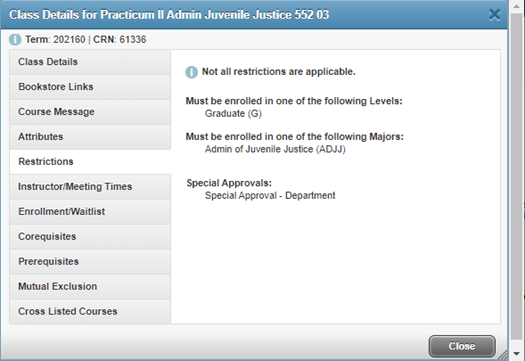
The course Restrictions state who may register for the course. Students who do not meet the criteria for a course they need to take should contact the department under which the course is offered to explore their options.
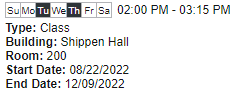
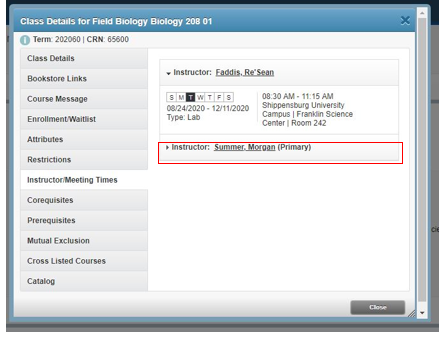
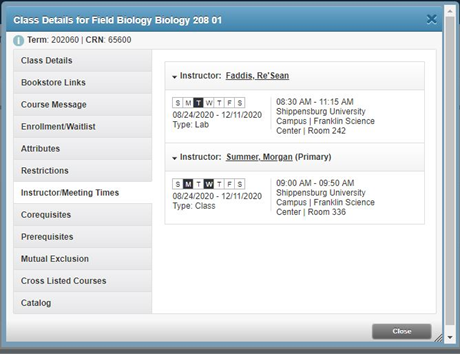
Instructor/Meeting Times will list the part of term date range, the days and times the course meets as well as the room and instructor for the course. If a course has two instructors or meeting patterns, you may have to click the second line to view all the meeting times and locations.
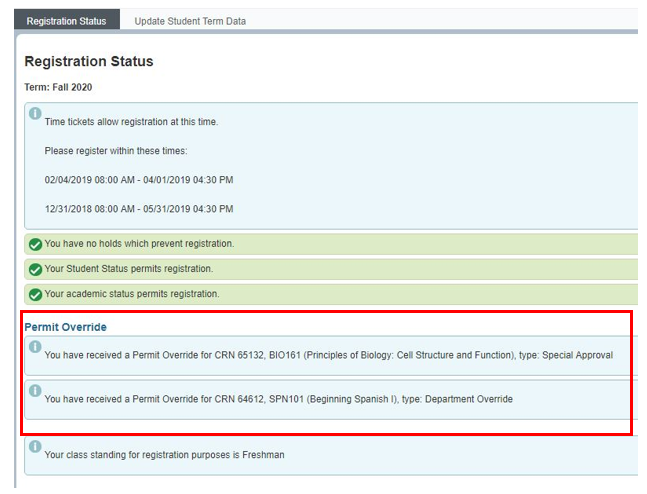
Some departments will provide an override for a course due to a restriction, prerequisite, closed section, or required department approval, etc. Refer to Overrides by Department to determine if an override will be considered and how to submit the override request. Students may contact the secretary of the department under which the course resides if they have questions.
If a student is granted the override, it will appear in their Registration Status. With the override, the student may now register for the course using the myShip Experience portal.
- For each fall and spring term, the maximum credits a graduate or doctoral student can register for is 12. The maximum credits an undergrad student can register for is 17.
- For the summer term, the maximum credits a graduate or doctoral student can register for is 12. The maximum credits an undergrad student can register for is 11.
- For the winter term, the maximum credits a graduate, doctoral or undergrad student can register for is 8.
As a graduate or doctoral student, if you wish to register for more than the maximum allowable credits, contact the department office under which your program is located to obtain authorization. The department will notify the Registrar’s Office of approval.
As an undergrad student, if you wish to register for more than the maximum allowable credits, fill out the request to exceed maximum credits form here. Shippensburg University - Max Credit Form
Registration
Registration for ALL classes will take place through the myShip Experience portal.
After you select a course for which you want to register, select SUBMIT CHANGES to register for the course. If you do not select SUBMIT CHANGES, your registration for the course will not be submitted. Submission of your registration for a course will return results. Be sure to review these results.
If a course is restricted to a particular group of students, contact the department under which the course is located to determine if you may be able to register for this class. If you receive a message indicating you have a conflict, select another section of the same course or another course that is not held during the same time as any other class on your schedule. If you receive a message that you have reached your maximum credits, complete and submit the Request to Exceed Maximum Registration Credits form to obtain permission.
You may then attempt to register for more classes and print your schedule when finished.
From the myShip Experience portal> Sign into myShip Experience>On the Registration experience card, click Registration Self- Service
Click on Register for Classes

Select the Term for which you’d like to register.
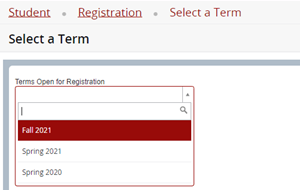
Enter the Alternate PIN provided to you by your academic advisor. You will obtain this PIN after meeting with you advisor about your schedule. After entering your PIN, select Continue. If you successfully register for courses, you will not need to enter this pin the next day.
NOTE: If you do not know who your advisor is, log into the myShip Experience portal > Academic Advising Card > Find my advisor. If there is not a faculty member listed as your primary advisor, please contact the program chair of your department.
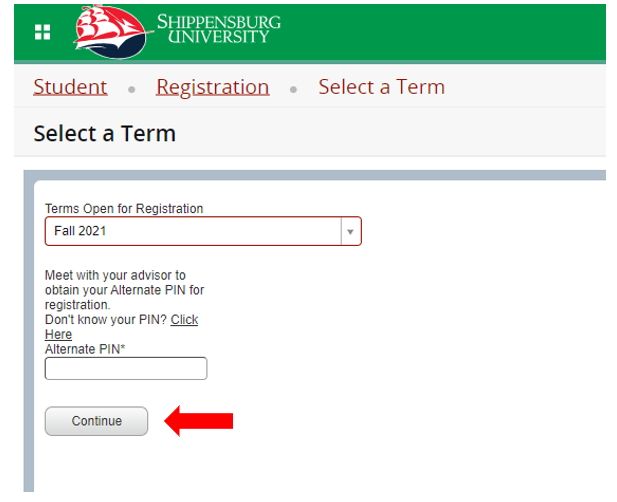
After entering your PIN, you may now search the courses. For instructions on how to browse courses, view the instructions for Browse Courses/Plan Schedule.
From the Search Results, if you would like to add a section to your schedule, select Add.

The course will be added to your course view and list as Pending. Click Submit in the bottom right corner. If you do not see Pending change to Registered, then you are not registered for the course.
- Class Schedule and Registration Status will appear gray until schedule is submitted for processing
- Click Submit and a color-coded finalized class schedule appears in the bottom left side of the screen
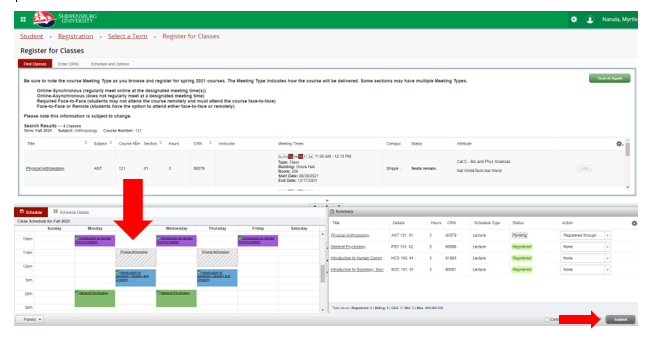
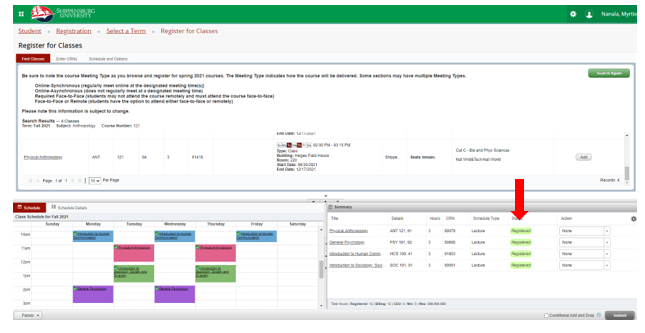
If you receive an error message in a blue box in the upper right corner of the screen, follow the instructions in the message.
Directly Enter CRNs: If you know the course reference number (CRNs) for the courses for which you wish to register, you may enter them directly and the course titles will populate.
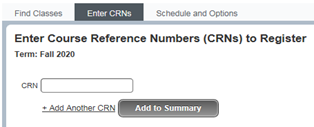
Click Add to Summary to add them to Registration Summary. The course will be added to your course view and list as Pending. Click Submit in the bottom right corner. If you do not see Pending change to Registered, then you are not registered for the course.
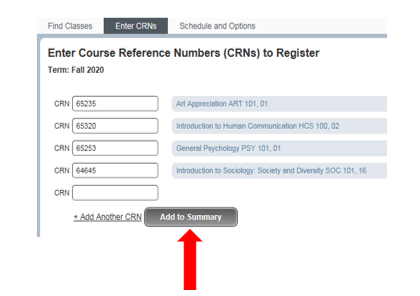
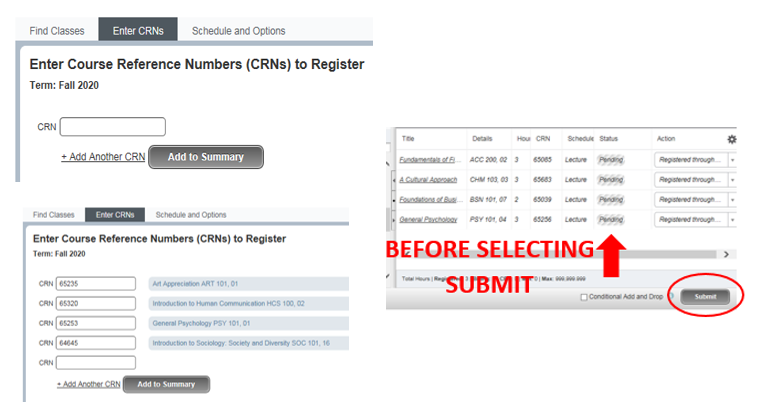
Corequisites: You must register for co-requisite courses at the same time. Add the first co-requisite to the course summary, then the other BEFORE clicking submit. Otherwise, you will get a registration error.

If you already know both course CRNs, enter them on the enter CRNs tab and click add to summary
If you don’t know both CRNs, search for and add both classes to registration summary before clicking submit.
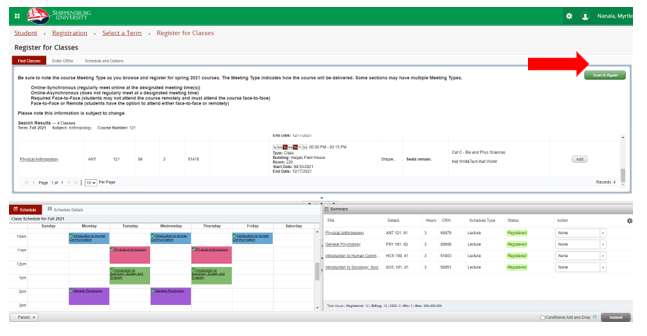
To search for/add another class, select Search Again in the upper right and repeat the previous steps. **Remember to clear out any unneeded search criteria for each new search – it does not automatically clear out when you return to the search page**
Some classes offer a waitlist, which allows students to get on a waiting list to register in a full/closed class if a seat becomes available. Some classes may display as open, but the available seats are reserved for students on the waitlist.
If a class is restricted or if there is an unmet pre-requisite, you will need to contact the department office under which the course resides to explore your options for obtaining the necessary override(s) before you will be able to be added to the waitlist for the course. It is the responsibility of the student to ensure that they have taken care of any necessary overrides, max credit increases, or other permissions prior to enrolling into the course. If a hold that prevents registration has been placed on your record after you have waitlisted for the course, the appropriate office must clear the hold from your record before you will be permitted to move from the waitlist.
If you no longer need a course you have waitlisted, you may use the Register for Classes (Add, Drop or Withdraw from Classes) functionality to drop the class (please see for instructions).
Signing up on the waitlist does NOT guarantee you a seat in the course.
If there is no waitlist for a course you feel you must take, contact your program coordinator to discuss your options.
How to Waitlist for a Class
- From the myShip Experience portal, sign in to myShip Experience, on Registration card > click Registration Self-Service.
- Click on Register for Classes
- Select the Term for which you’d like to register.
- If the class is closed, it will be indicated by a status of “FULL.” It will also indicate if there are Waitlist seats available.

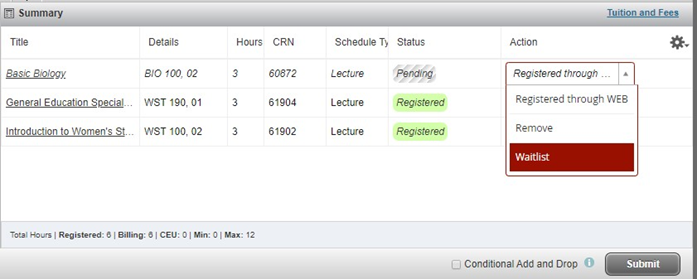
- If Waitlist seats exist, select Add to add the course to your summary.
- Select Waitlist from the Action dropdown.
- Select Submit.
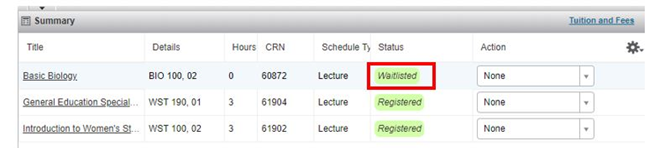
- If successfully added to the waitlist, the class will display in the Summary and on your Schedule with a Status of Waitlisted.
Waitlist Notification of Seat Available
Summer & Winter: If a seat becomes available in a waitlisted class, the student in the highest position on the waitlist will receive an email notification of the available spot and the limited number of hours to register themselves into the class. Upon receiving the email notification, if the student does not register for the class within the stated deadline, the student will be automatically removed from the waitlist (and would need to repeat the process above to be added back to the waitlist).
Fall & Spring: You will be notified by email if space becomes available in the class, and you are being moved from the waitlist to the class.
Registering for a Waitlisted Course
Waitlisted students who receive email notification of an available seat must follow these steps (within the stated deadline) to register in the class. See Registering for Classes for instructions on registering.
Note that the Conditional Add and Drop option may not work as expected when registering in a waitlisted class. Check your schedule carefully for potential time conflicts, duplicate courses, etc. when registering in a waitlisted class if you are dropping a class at the same time.
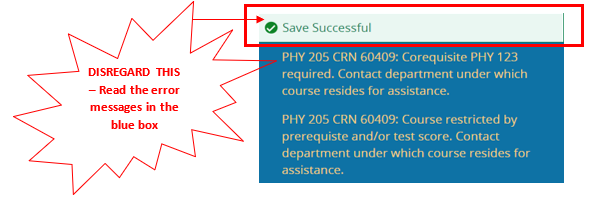
If you receive an error message in the top right corner, follow the instructions in the message. The Save Successful green box does not mean you are registered! If you do not see Pending change to Registered, then you are not registered for the course.
Common errors:
- Prerequisites and Test Score Error
-
IMPORTANT NOTE ABOUT FALL REGISTRATION: If you are taking a course during the summer semester that would serve as a pre-requisite for a course that you are trying to register for in the fall semester, you will need to request an override from the department in which the course resides.
-
- Link Error
- College Restriction
- Major Restriction
- Class Restriction
- Department or Instructor Permission Required
- Closed Section
- Co-requisites Required
- Maximum Hours Exceeded
- Time Conflict
Corequisites: You must register for co-requisite courses at the same time. Add the first co-requisite to the course summary, then the other BEFORE clicking submit. Otherwise, you will get a registration error.

Should you decide not to attend or to stop attending a class, it is your responsibility to officially drop or withdraw from the class, whether or not you have ever attended that class. If you do not attend and do not drop or withdraw, your name will remain on the class list until the final grading period, you will receive a grade of "F" for the class, and you will be charged for the class.
You may drop or withdraw from all summer or winter classes through the myShip Experience portal. You may drop or withdraw from all but your last fall or spring class through the myShip Experience portal. To withdraw from your last fall or spring class, contact your academic dean’s office.
If you Drop a course within the add/drop window for the Part of Term in which the course resides, you will not be charged for the course and the course will no longer appear on your schedule. After the drop/add window has passed, you must withdraw from the course and receive a W grade.
First semester freshmen cannot drop courses using the myShip portal. First semester freshmen must drop/withdraw from any class through their academic dean’s office.
See Withdrawing from Classes for information on withdrawing.
- From the myShip Experience portal, sign in to myShip Experience, on Registration card > click Registration Self-Service.
- Select the Term for which you’d like to drop the course.
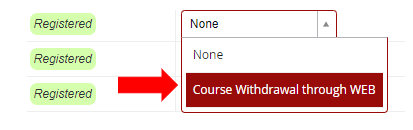
- From the Action dropdown menu, select Drop through WEB and click Submit.
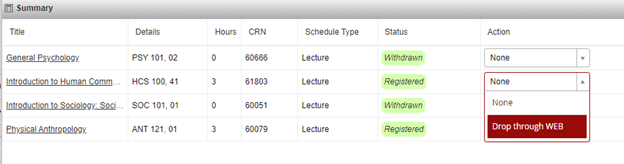
If you successfully dropped the course, you should see the green dialogue box in the top right corner. If you receive an error, follow the instructions the error gives you.
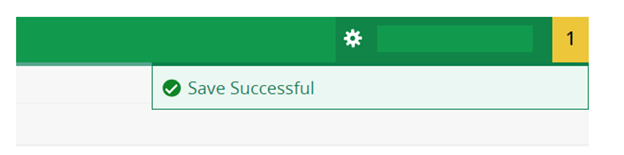
If you do not have the option to Drop through WEB, the window for dropping and adding courses has passed and you must withdraw from the course. Visit Withdraw from a Course for information on this process.
Should you decide not to attend or to stop attending a class, it is your responsibility to officially drop or withdraw from the class, whether or not you have ever attended that class. If you do not attend and do not drop or withdraw, your name will remain on the class list until the final grading period, you will receive a grade of "F" for the class, and you will be charged for the class.
You may drop or withdraw from all summer or winter classes through the myShip Experience portal. You may drop or withdraw from all but your last fall or spring class through the myShip Experience portal. To withdraw from your last fall or spring class, contact your academic dean’s office.
Withdrawing from a class will result in a W grade on your transcript. Deadlines for withdrawing for courses can be viewed here. Please read the university refund policy before withdrawing from a course. No refunds will be issued for withdrawn courses. Refunds are only issued for full withdrawals from the university if the withdrawal date is within the refund period and in accordance with the university refund policy.
When to use myShip portal to withdraw:
Graduate students, non-degree undergraduate students, and undergraduate students should use the portal to withdraw from all but last class.
When to contact dean’s office:
Continuing undergraduates who are withdrawing from their last class or have outstanding holds preventing registration should work with their dean’s office. Incoming freshmen will also need to contact the dean’s office to withdraw from a course as they cannot adjust their schedule during their first semester.
When to fill out the withdraw form:
Graduate and non-degree undergraduate students withdrawing from their LAST class should complete the form to drop/withdraw from their last enrolled fall/spring class. Before submitting the form, be sure to drop/withdraw from all but the last class. Once the form is submitted, it must be processed by various offices at Shippensburg. Continuing undergraduate and first semester freshmen SHOULD NOT fill out this form.
From the myShip Experience portal, sign in to myShip Experience, on Registration card > click Registration Self-Service.

- Click on Register for Classes

- Select the Term for which you’d like to withdraw from the course.
- From the Action dropdown menu, select Course Withdrawal through WEB and click Submit.
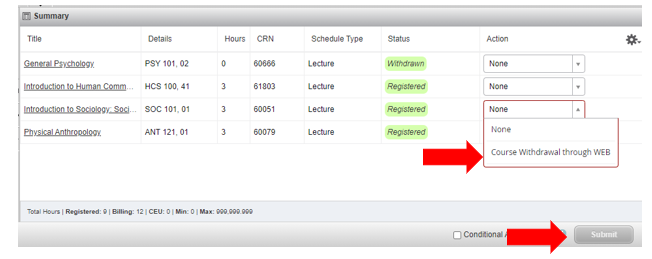
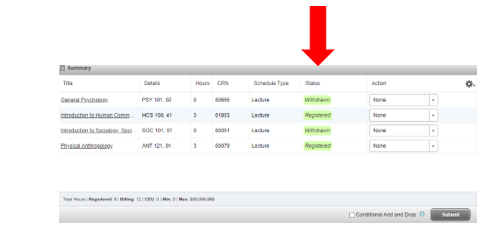
If your submission was successful, status for course should indicate Withdrawn.
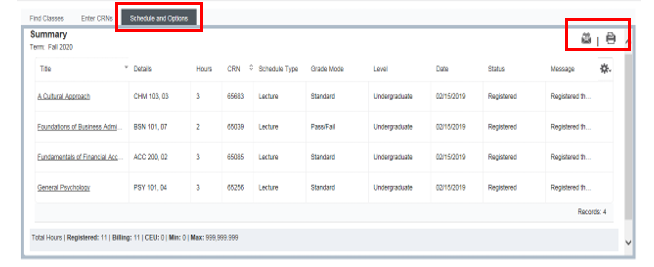
Click on the schedule and options tab and select the correct icon in the top right.
Technical
Technology Help Desk
717.477.HELP (x4357) | helpdesk@ship.edu
Help Desk Location: Math/Computer Technology Center 071
Course Closed
Your Advisor to discuss if there are other courses that may be taken in place of the closed course
Instructions for looking up your advisor are here
Course Error Message
Department in which the course resides
System
Registrar’s Office
717.477.1381 | registrar@ship.edu
Old Main 110