

Microsoft Forms are ADA compliant when using the Out-of-the-Box functionality. As a student or employee of Shippensburg University, you have access to Microsoft Forms.
All Episerver/Optimizely Forms should be replaced with a Microsoft Form. You can create a Microsoft Form by visiting forms.microsoft.com.
Microsoft Forms can be a simple question and answer format that then gets emailed directly to your inbox or can dump the data from the form into a Team in Microsoft Teams so that your entire Team can have access to the information.
It is best that you create your own form (we know it's scary, we believe in you!), because if you want the form emailed to you, you have to be the one who creates it.
When you first go to Microsoft Forms the window will look like this:
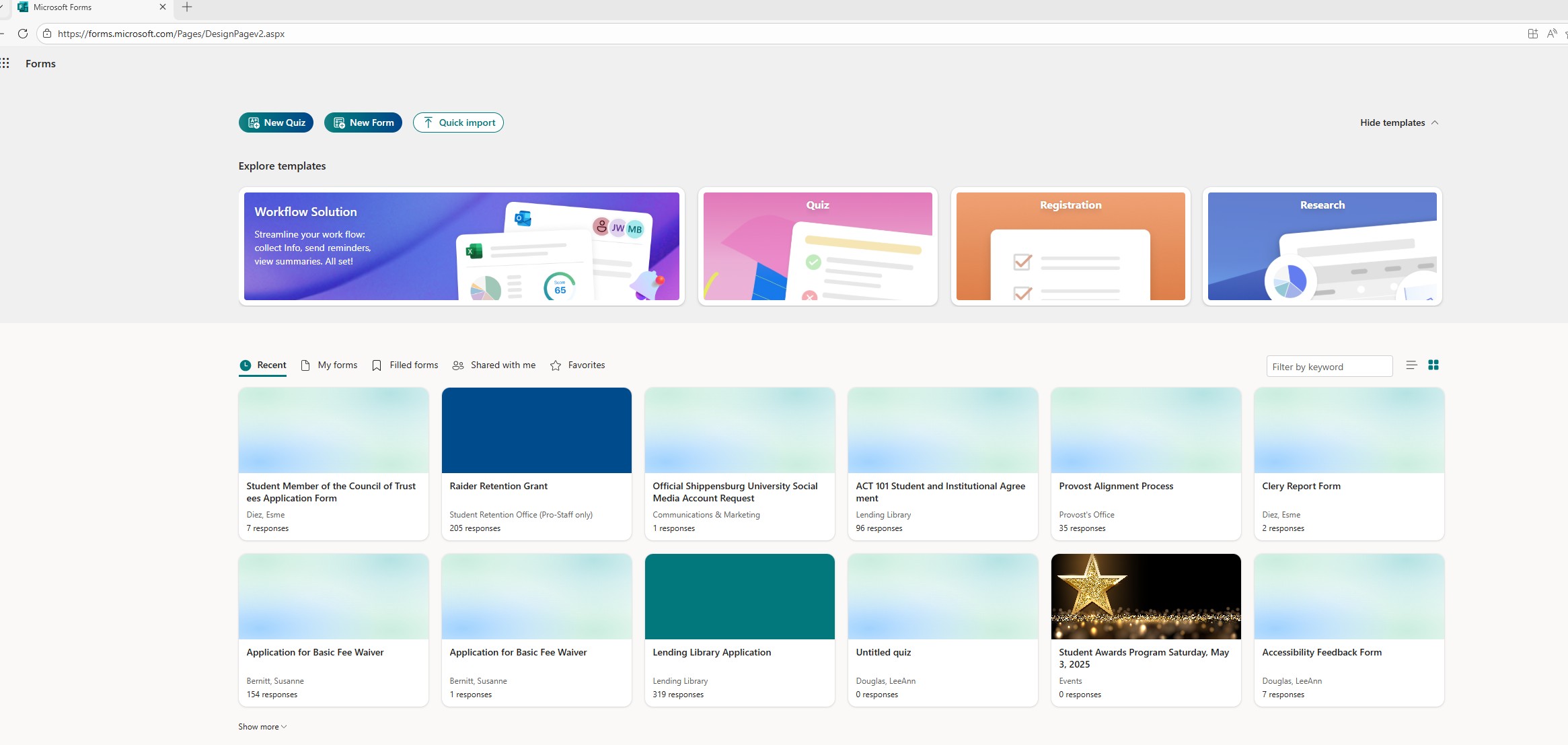
Click or tap New Form button on the page. A screen will open that looks like the one below. Click the box that best describes the form you want to complete.
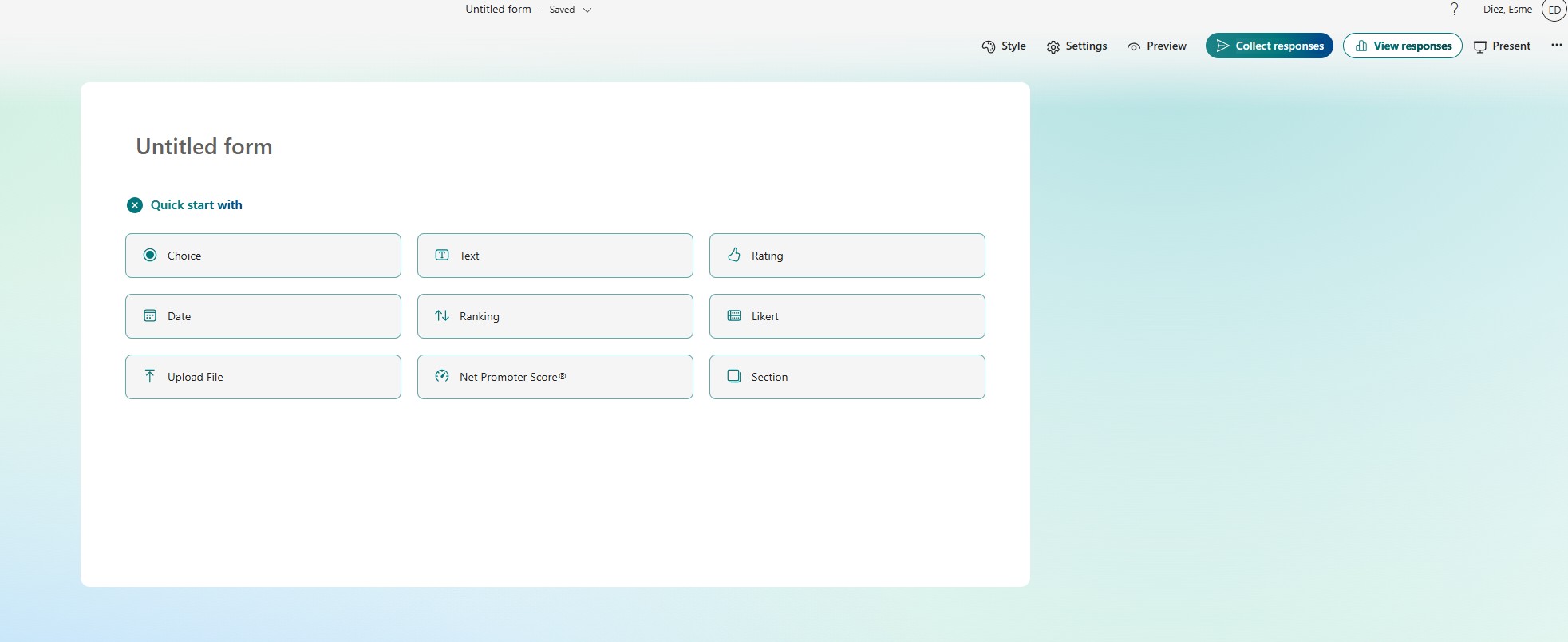
When your form is completed, check your settings:
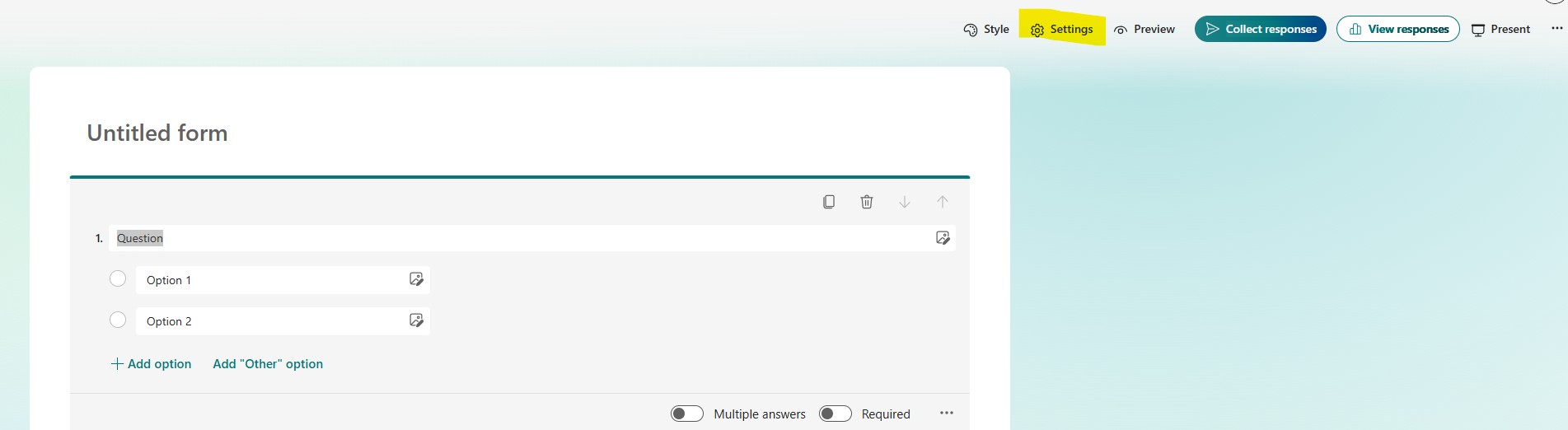
In the settings area is where you will choose who will receive the responses to your form as well as who can fill out your form.
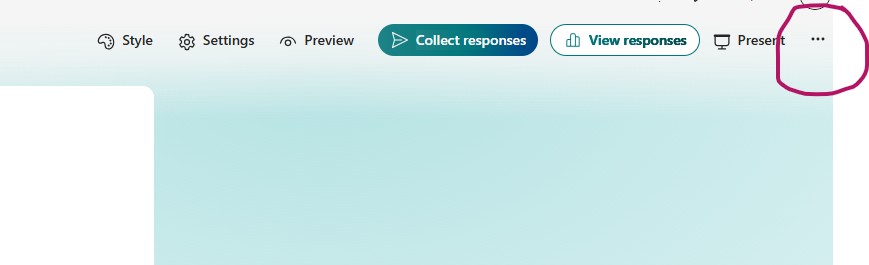
Under the menu (screenshot below) are options for collaboration which helps if you want others in your department to be able to edit and access the form.
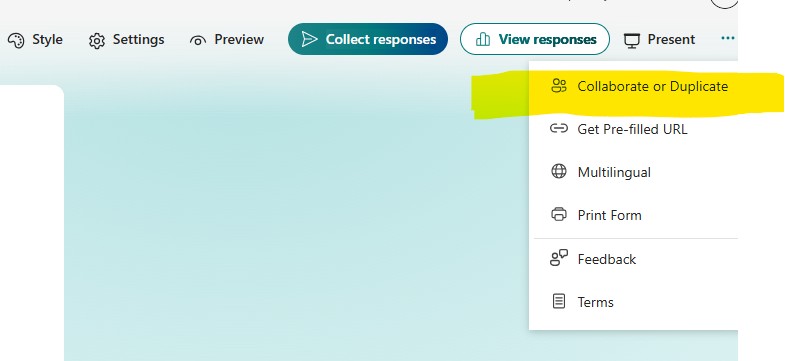
Once your settings and design is in place, you are ready to test the form. Always test your form and make sure it looks and acts the way you want it to and that you are comfortable with how you are receiving the results. You test it by going to the link that you created to be shared via email or through the website. Fill out the form and make sure what you receive on the back end looks the way and works the way you expected.
When you're ready to deploy, click or tap the "Collect responses" button and there are more settings you can explore and you can grab the link to your form from here. This link is what you will provide to the Web Content Manager for the website.
Advanced Feature: Integration with Teams
You can share a form with people on your team by integrating it into your Microsoft Teams dashboard. To do this, when you create the form you want to move it to a group.
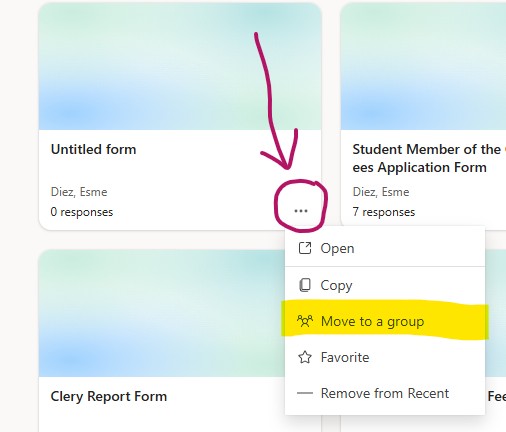
You will only be able to move the form to a group that you are a member of. Once you have assigned the form to a group, go to that Group/Team in Microsoft Teams. You may be a member of more than one group. You will need to choose which Team on the Teams side menu.
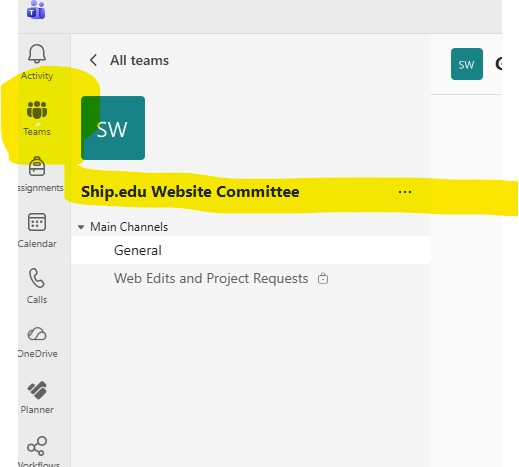
In your Team header, you can add a tab. When you click or tap the "add" button, choose Apps, then choose Forms.
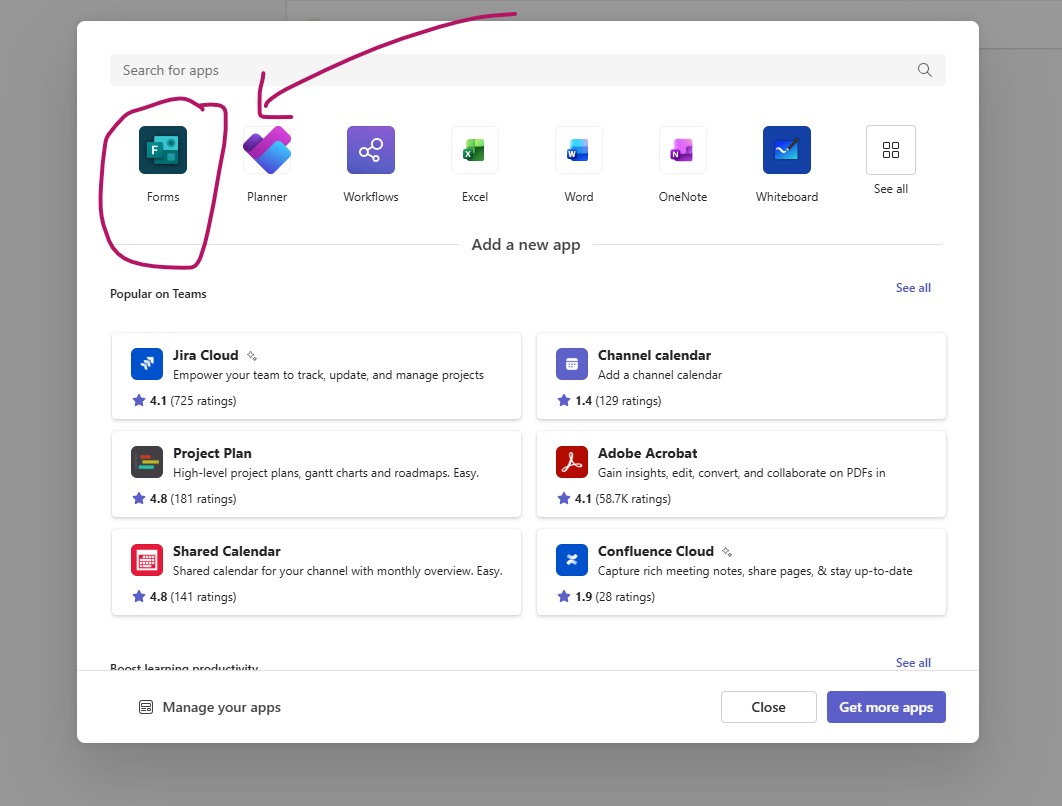
You want to choose "Add an existing form" and you will be provided with a drop-down menu of all the forms available to add to this Team. The settings you choose are important. If it doesn't seem like your Team can view the results, you need to check your settings. Sometimes you need to play around with it a bit.
Once it is added as a tab in your Teams, everyone with access to that Team can view the responses to the form.