

Proxy Instructions
Students have exclusive control of the set up and maintenance of proxy access. The student controls the individual(s) granted access, the timeframe within which the proxy has access, and the information the proxy may view.
If a proxy has any questions or concerns related to their access, the student will need to address these concerns. The university is not permitted to grant access or modify existing access on behalf of the student.
NOTE: A student’s preferred/chosen name is displayed to all proxies.
How do I activate my access once a student has granted me proxy access?
When you are added as proxy, you will receive three emails (not necessarily in the order listed below) at the email address the student used to set up your access.
- Email #1: Action Required-Ship Proxy Access–Temporary Link – This email alerts you proxy access has been established and provides a temporary account activation link (Access URL) to use to activate your access. NOTE: This link may only be used once and expires after 5 days.
- Email #2: Action Required-Ship Proxy Account–Temporary Password – This email includes a temporary password to be used when you access the temporary account activation link.
- Email #3: Shippensburg University-Proxy Access – This email provides a link to the proxy portal. This link should be used after initial account activation is completed.
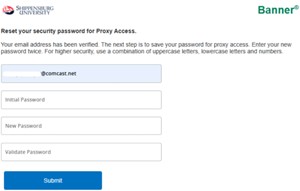

Once you activate your account, you will be prompted to provide your contact information on the Proxy Personal Information tab.
If you accidentally close your browser or some other malfunction occurs before you have the chance to activate your access, the student will need to reset your password by following the instructions at student instructions. This will trigger the three emails noted above to be resent.
How do I update my address or phone information?
- Log in at (need link proxy will use).
- Click on the Proxy Personal Information link to enter or update your contact information at any time.
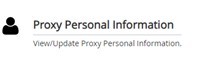
- Click on Submit to submit the information you have entered.
How do I change my password?
- Log in at (need link proxy will use).
- Click on the Proxy Personal Information link.
- Click on the Click here to change your password link in the upper right corner.

- You will be sent an email with a link to change your password.
How do I access information once my account has been activated?
- Log in at https://studentssb-prod.ec.passhe.edu/StudentSelfService/login/auth?mepCode=003326
- If you have been granted proxy access for more than one student, select the student for which you want to access information.
- From the drop-down menu to the right of the I am proxy for (student name) label, select the page you wish to view. NOTE: The Student Grades link will only display current semester grades. All other grades may be viewed through the Academic Transcript

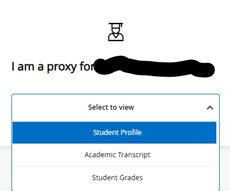
- Academic Transcript Page – You will need to select the Transcript Level (All Levels, Undergraduate, Graduate, or Doctoral) and Transcript Type (Unofficial Transcript).
- Student Grades Page – You will need to select the Term (e.g. Fall 2026) and Course Level (Undergraduate, Graduate, or Doctoral)
For information on the financial aid pages that are available visit ship.edu/paying/financial-aid/.
- Click on the Shippensburg University log in the top left corner of the page if you wish to go back and select another page to view.
What do I do if I forget my password?
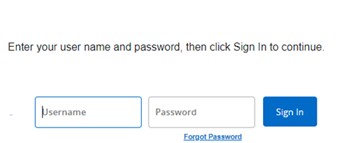
- Navigate to the log in screen at https://studentssb-prod.ec.passhe.edu/StudentSelfService/login/auth?mepCode=003326.
- Enter your username (this is the email address the student used when setting up your access).
- Click on the Forgot Password
- You will receive 2 emails:
- Email #1 – This email includes a temporary password to be used to initiate the password reset process.
- Email #2 – This email incudes a link to reset your password. NOTE: This link may only be used once and is only valid for 5 days.
- Click on the password reset link provided in Email #2.
- When prompted, enter the password received in Email #1.
- Click Submit
- To complete the process, you will need to enter the following information and click Submit.
The student who set up your access can also reset your password. Instructions for a student to reset a password are included in the student instructions at student instructions.